


At some point, every SEO spreadsheet hits a wall. Formulas too long to read, data too fragile to maintain, teammates too scared to touch anything. Apps Script turns that same spreadsheet into Google Sheets on steroids. And with tools like ChatGPT and Claude, you don’t even need to write the scripts yourself.
You don’t need to learn Python. You don’t need a terminal. Yes, Apps Script is JavaScript, so there’s a language to pick up. The difference is that AI can handle most of the writing for you. Describe what you want, paste the result into your Sheet, and iterate from there.
Open your Google Sheet, go to Extensions > Apps Script, and paste this and hit on the save icon or Ctrl + S / Cmd + S:
/** @customfunction */
function DOMAIN(url) {
  return url.split('//')[1].split('/')[0];
}
Go back to your sheet and type =DOMAIN(A2). That’s it. A readable, reusable formula that extracts the domain from any URL. No terminal, no packages, no setup.
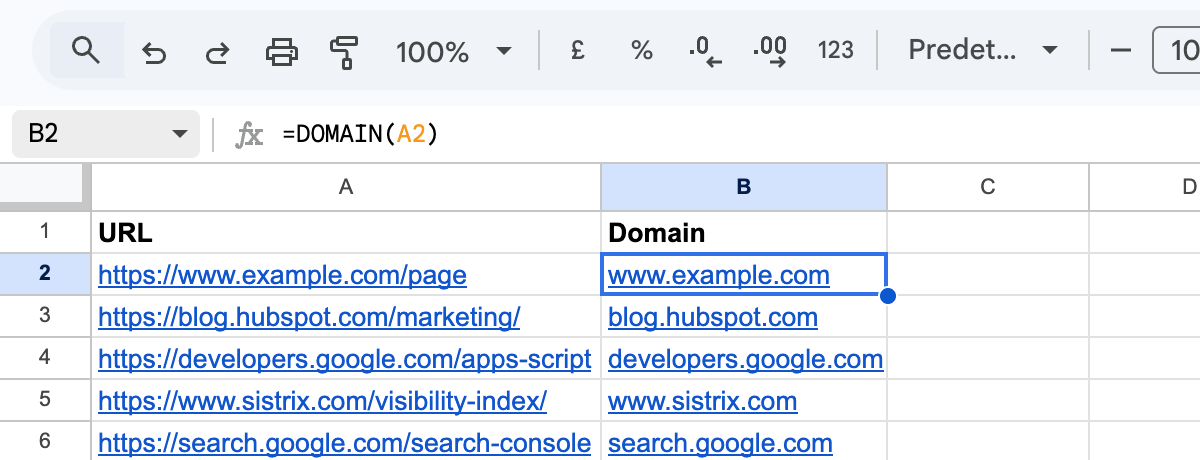
That’s Google Apps Script. It runs inside Google Sheets, it’s JavaScript, and if you’ve ever edited a GTM tag or opened Chrome DevTools, you already know the basics.
What makes it different from learning Python or pure JavaScript?
You already know the environment
Google Sheets is the SEO industry’s universal tool. Everyone uses it. Apps Script simply extends what you’re already comfortable with. You’re not learning a new platform. You’re adding superpowers to the one you already have.
Zero setup, really
There’s nothing to install. No Node.js, no pip, no IDE, no terminal. Open a Google Sheet, click Extensions > Apps Script, and you have a code editor. Save your script, click Run. That’s the entire workflow.
It goes beyond custom formulas
Apps Script has native access to the entire Google ecosystem without any API keys, OAuth configuration, or HTTP clients:
- Sheets - Read and write data, create formulas, format cells
- BigQuery - Query your GA4 or Search Console bulk exports directly
- Gmail - Send automated reports, parse incoming emails
- Drive - Create, move, and organize files programmatically
- Docs - Generate reports, fill templates, extract text
- Slides - Generate presentation decks from data
- Google Ads - Automate campaign management, reporting, and bid adjustments
- Calendar - Schedule events, set reminders
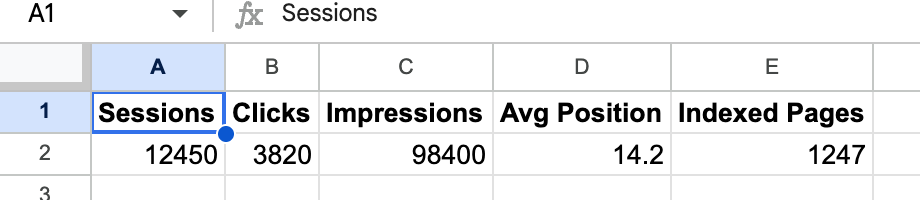
Want to email your team a summary of the data in your sheet? Five lines:
function emailReport() {
  const sheet = SpreadsheetApp.getActiveSheet();
  const [headers, values] = sheet.getRange('A1:E2').getValues();
  const summary = headers.map((h, i) => h + ': ' + values[i]).join('\n');
  GmailApp.sendEmail('team@company.com', 'Weekly SEO Report', summary);
}
Want to pull data from BigQuery and write it to a Sheet? A few lines:
const results = BigQuery.Jobs.query({ query: 'SELECT * FROM dataset.table LIMIT 10', useLegacySql: false }, 'your-project-id');
const rows = results.rows.map(row => row.f.map(cell => cell.v));
SpreadsheetApp.getActiveSheet().getRange(1, 1, rows.length, rows[0].length).setValues(rows);
No API keys. No authentication setup. It just works because you’re already signed into Google.
Scheduling and sharing just work
Need a script to run every Monday morning? Go to Triggers in the Apps Script editor, set a time-based trigger, and you’re done. No cron jobs, no cloud functions, no server to maintain.
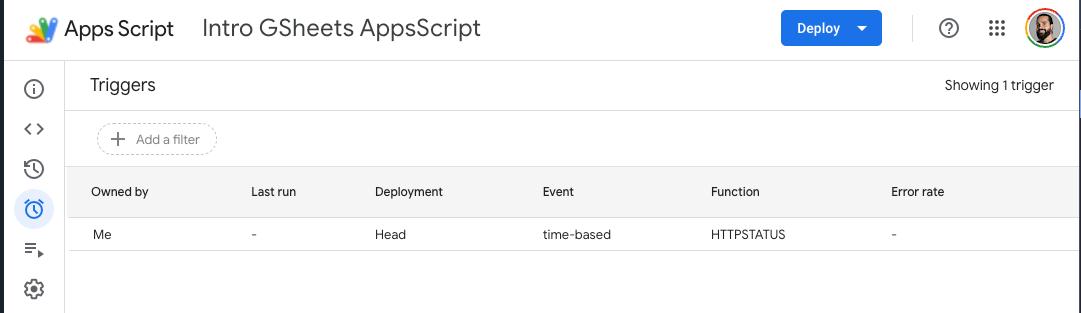
Want your team to use your tool? Share the Google Sheet. They don’t need to install anything, configure credentials, or even understand that there’s code behind it. They just open the spreadsheet and use it.
What can you actually build with this?
At Adevinta, I used Apps Script to pull Sistrix visibility data weekly, compare trends across multiple markets, and email formatted reports to stakeholders. No servers, no cron jobs. Just a Google Sheet and a time-based trigger. That’s the kind of thing Apps Script is built for.
Here are more examples of what SEOs build with it.
Automated weekly reports
Pull Search Console or GA4 data from BigQuery every Monday, calculate week-over-week trends, format the results in a clean sheet, and email a summary to stakeholders. All on autopilot.
Bulk URL processing
Read a list of URLs from column A, fetch each page, extract titles and meta descriptions, and write the results back to the sheet. Your team gets a live content inventory they can filter and sort.
Custom Sheets formulas
Build functions your team can use like native formulas. For a full collection of 16 ready-to-use formulas (URL parsing, content auditing, redirect checking, and more), see 16 Custom Formulas That Will Make You Ditch Excel for Apps Script.
/**
 * Returns the HTTP status code for a URL
 * @param {string} url The URL to check
 * @return {number} HTTP status code
 */
function HTTPSTATUS(url) {
  const response = UrlFetchApp.fetch(url, { muteHttpExceptions: true, followRedirects: false });
  return response.getResponseCode();
}
Since this uses UrlFetchApp to make network requests, it can’t run as a cell formula (Google restricts network calls in custom functions). Instead, call it from a custom menu or trigger. Your colleagues still don’t need to know how it works.
Alert systems
Monitor your key pages daily. If a page returns a 5xx error, ranking data drops below a threshold, or a competitor makes a change, trigger an email or Slack notification.
Data pipelines
Connect multiple Google services in sequence: query BigQuery for yesterday’s Search Console data, compare it against last week, generate a Slides deck with the highlights, and email it to your manager. All from a single script.
Getting started
Your first script
Open your Google Sheet, go to Extensions > Apps Script, and paste this and hit on the save icon or Ctrl + S / Cmd + S:
function onOpen() {
  SpreadsheetApp.getUi()
    .createMenu('🤖 SEO Tools')
    .addItem('Say hello', 'sayHello')
    .addToUi();
}

function sayHello() {
  SpreadsheetApp.getUi().alert('Apps Script is working!');
}
Go back to your sheet and refresh the page. You’ll see a new “SEO Tools” menu. Click it and select “Say hello.”

That’s it. You just built your first Apps Script automation.
Four ways to run a script
- Script editor “Run” button. Click the play icon in the Apps Script editor. Best for testing.
- Custom menu. Use an
onOpentrigger to add menu items to your sheet (like the example above). Best for tools your team will use. - Custom function. Call your function directly from a cell with
=myFunction(). Best for formulas that process data. - Time-based trigger. Schedule scripts to run automatically (hourly, daily, weekly). Best for reports and monitoring.
Resources to keep going
- Official Apps Script documentation - The reference for all built-in services
- Apps Script quickstarts - Guided tutorials from Google
- Dave Sottimano’s Tech SEO Boost talk - Excellent walkthrough of Apps Script for SEO
The limitations (and workarounds)
Apps Script isn’t perfect. Here’s what to watch out for.
Execution time limits. Scripts can run for up to 6 minutes on free accounts (30 minutes on Google Workspace). For large datasets, you’ll need to batch your work across multiple runs.
API quotas. There are daily limits on how many emails you can send, how many URL fetches you can make, and how much BigQuery data you can process. Check the quotas page to plan accordingly.
The editor is basic. The built-in code editor gets the job done, but it’s no VS Code. For larger projects, use clasp to develop locally and push to Apps Script. I wrote about how Claude Code completely changed my Apps Script workflow for exactly this reason.
It’s not full JavaScript. Apps Script runs on a modified V8 engine, but it doesn’t support everything standard JavaScript offers. There’s no import/export, no fetch() (you use UrlFetchApp instead), and some newer JS features may not be available. On the flip side, Apps Script provides built-in services like SpreadsheetApp, GmailApp, and DriveApp that don’t exist in regular JavaScript. Think of it as JavaScript tailored for Google’s ecosystem. If you already know JavaScript, you’ll feel right at home. If Apps Script is your first contact with code, it’s a solid stepping stone to learning JavaScript more broadly.
None of that should stop you
Apps Script sits in a sweet spot. It’s accessible enough for someone who’s never written code before, and powerful enough to build real production workflows.
If you’ve been wanting to start automating SEO tasks but felt overwhelmed by Python setups or Node.js configuration, this is your on-ramp. Open a Sheet, write a function, and see what happens.
If writing code isn’t your thing, Unlimited Sheets by Nacho Mascort packs really good SEO functionalities out of the box into a Sheets add-on. Plug and play.
Have questions or want to share what you’ve built? Find me on 𝕏 @jlhernando or LinkedIn.
Get notified when I publish new tools, scripts, and articles.
No spam. Unsubscribe anytime.